

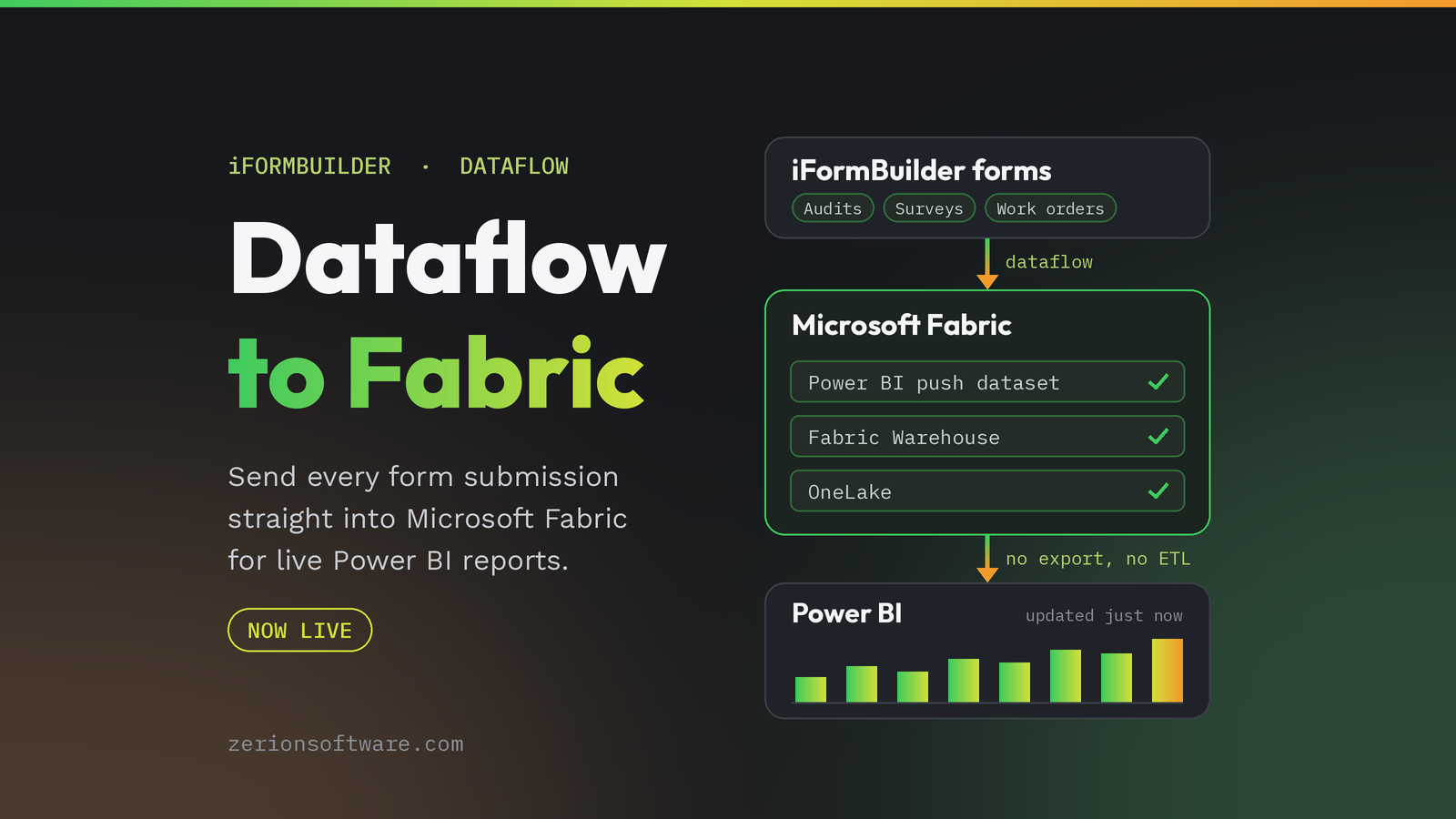
iFormBuilder’s Dataflow now sends every form submission straight into Microsoft Fabric. As a result, your Power BI reports stay current without exports, refresh scripts or custom ETL.
For most field teams, data collection is already solved. Inspections, audits and surveys are completed on a phone or tablet, online or offline. Within minutes, they land in iFormBuilder.
The slow part comes next. Someone downloads the data, cleans it up and loads it into Power BI. Until they do, the dashboard is out of date.
If your organization already runs on Microsoft, that manual step is now gone. Dataflow, the automation layer in iFormBuilder, connects directly to Microsoft Fabric. It writes each submission where Power BI can read it.
A Native Microsoft Fabric Connection in Dataflow
Dataflow already moves your records into the systems you use, such as SQL Server, SharePoint and BigQuery. Now Microsoft Fabric is one of those destinations. You can land your data in three ways, depending on how your Power BI team works:
- Power BI push dataset: submissions stream into a dataset in your Fabric workspace, ready for a live report.
- Fabric Warehouse: submissions become rows in SQL tables. Your analysts can query and join them like any other data.
- OneLake: submissions land in your organization’s OneLake, next to the rest of your Fabric data.
Whichever option you choose, there is no export to schedule. In addition, there is no middle database to build and maintain.
What Microsoft Fabric Delivery Gives Your Team
- Report on work as it happens. For example, an audit submitted at 10 a.m. is in your Power BI figures at 10 a.m.
- Remove the single point of failure. No one has to remember the export or cover it during leave.
- Change forms without breaking reports. With Auto Add Columns on, a new form field becomes a new column automatically.
- Keep reference data in one place. Your lookup tables can sit in Fabric next to your submissions.
- Combine field data with the rest of the business. Once your data is in Fabric, you can join it with finance, asset or operations data.
See Dataflow and Microsoft Fabric in Action
This short walk-through shows a dataflow sending submissions into OneLake and a Fabric Warehouse. We recorded it in our test environment during development. The feature is now live for all Dataflow customers.
Already Running in Production
A global energy metering company was one of the first to use the connection. Its first run sent 15,000 records from iFormBuilder into Microsoft Fabric. Today, its team builds Power BI dashboards directly on that data instead of assembling reports by hand.
Set Up Microsoft Fabric in Five Steps
Before you start: you need Dataflow on your iFormBuilder account and your own Microsoft Fabric capacity, which Microsoft licenses separately.
- Give Dataflow access: your Microsoft admin creates a service principal and adds it to your Fabric workspace.
- Add a Power BI connection in Dataflow and pick your destination.
- Enter your app details and click Test Connection.
- Add a Power BI action to your dataflow and choose the target table.
- Submit a record and watch it arrive in Fabric.
Full setup steps are in the iFormBuilder Help Center.
Microsoft Fabric FAQs
Can iFormBuilder send data to Power BI automatically?
Yes. Dataflow sends each submission to Microsoft Fabric as it arrives, and Power BI reads it from there. There is no export or scheduled import.
Do I need a Microsoft Fabric license?
Yes. The data lands in your own Fabric workspace, so you need Fabric capacity from Microsoft. The connection itself is part of Dataflow.
Should I choose a push dataset, a Fabric Warehouse or OneLake?
Choose a push dataset for a simple live report. Choose a Fabric Warehouse if your analysts work in SQL. Choose OneLake if your Fabric setup is built around a lakehouse. Our team can help you decide.
Does it work with data collected offline?
Yes. Devices store submissions until they reconnect. As soon as a record reaches iFormBuilder, Dataflow delivers it to Fabric.
What happens when I add a field to my form?
With Auto Add Columns on, which is the default, the new field becomes a new column in your Fabric table.
Can Zerion set this up for us?
Yes. Our Professional Services team can configure the connection, design the tables and help you build your first Power BI report.
Ready to put your field data where your reports already live? Contact us at sales@zerionsoftware.com or explore more at ZerionSoftware.com.
